Customizing SharePoint Forms with JSON
This project showcases the redesign SharePoint list form using JSON formatting. The work demonstrates UX design, process analysis, and Microsoft 365 solution building.
The Problem
The original SharePoint form had several issues that impacted daily operations:
Important information was buried or unclear
The form lacked visual hierarchy
Users found the form confusing and time‑consuming
This resulted in:
inconsistent submissions
frustration from both users and approvers
To fix this without using Power Apps, and add in simple conditional logic based on status and information being present I used JSON formatting to display the form.
Key improvements
Section headers to group related fields
Conditional visibility to hide irrelevant fields
Color cues and icons to highlight required or critical information
Logical field ordering to match the real workflow
Status indicators for clarity
Cleaner layout that reduced cognitive load
This approach allowed me to modernize the form without requiring Power Apps, keeping it lightweight, maintainable, and aligned with governance.
Before & After
Before
Long, unstructured list
No visual hierarchy
High error rate

After
Clean, structured layout
Guided user flow
Reduced errors and faster completion

Technical Implementation
I used SharePoint’s JSON formatting to:
Apply custom layouts
Add visual grouping
Implement conditional logic
Improve readability
Highlight required fields
Add icons and color coding
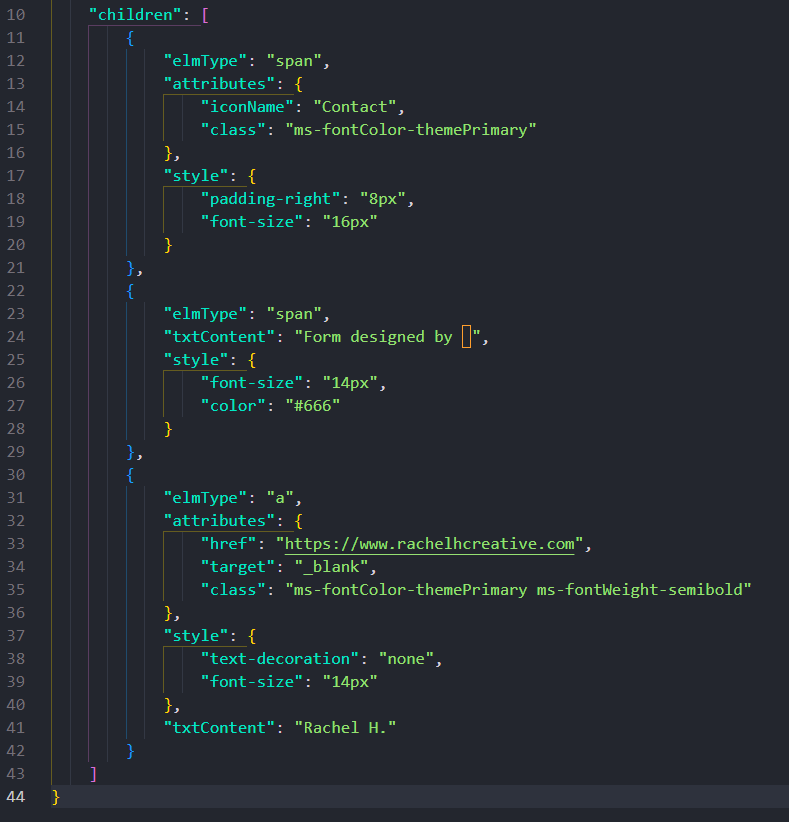
JSON for the Header, Body, and Footer



Comments